1 · FREQUENTLY BOUGHT TOGETHER

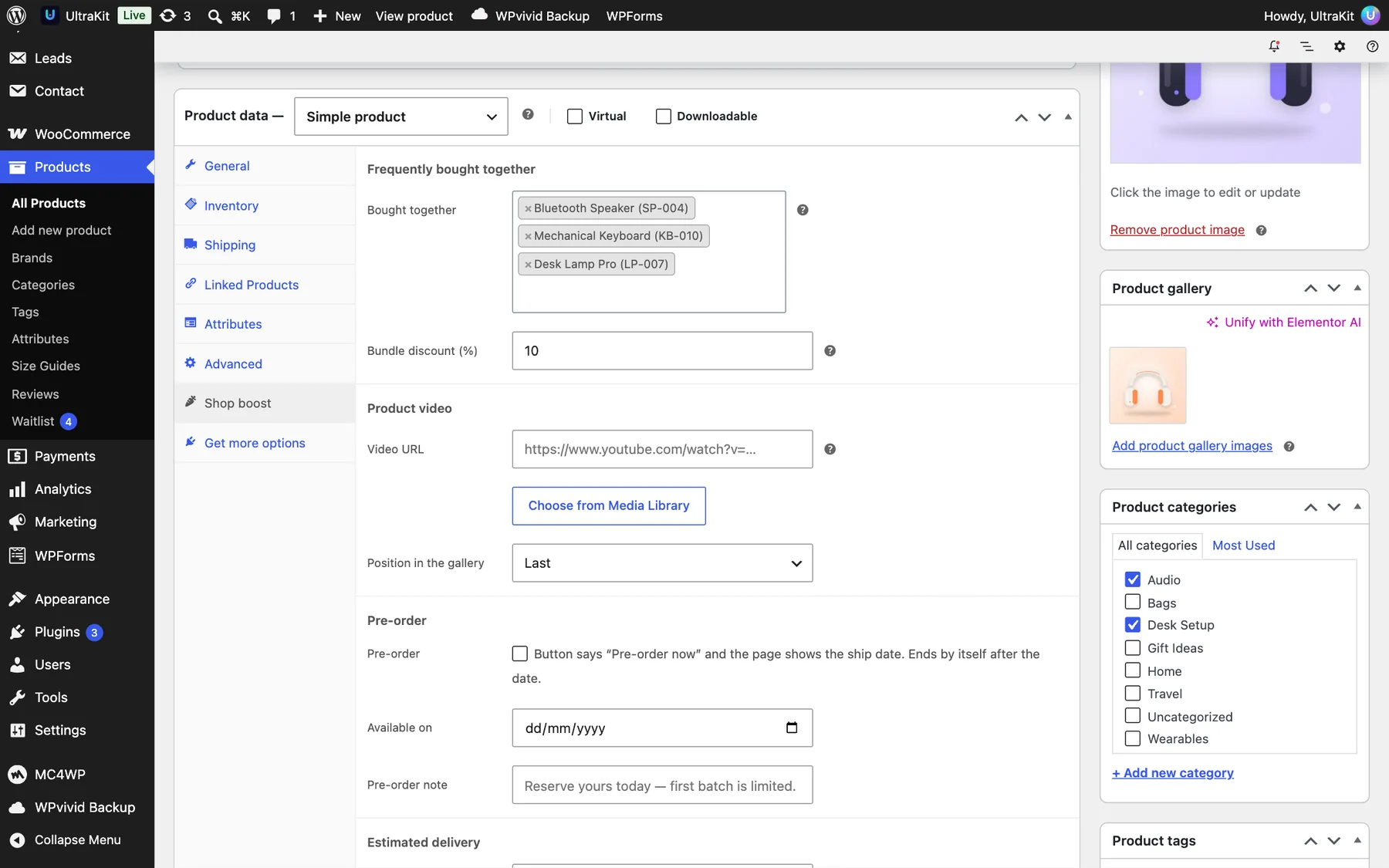
Scenario: someone is buying Wireless Headphones. The store owner picked a speaker, a keyboard and a desk lamp to go with them and set a 10% bundle discount. Untick anything, choose a size for shoes, see the total change — then add everything with one button. This block is live.

Frequently bought together

Save 10% when you buy all 4
  • Original price was: $129.00.Current price is: $99.00.
  • Original price was: $79.00.Current price is: $59.00.
  • $110.00
  • $45.00
Total price

  • ✓The discount is taken off in the cart only when every product of the set is in it — shown as a clear “Bundle discount” line, never a hidden price change.
  • ✓Pick products in Product data → Shop boost → Bought together (WooCommerce’s own product search), or let it fall back to the Upsells / Cross-sells you already have.
  • ✓Variable products get a small option picker — see it on the Runner Sneakers page, where it also follows the size you choose above.
2 · BACK-IN-STOCK WAITLIST

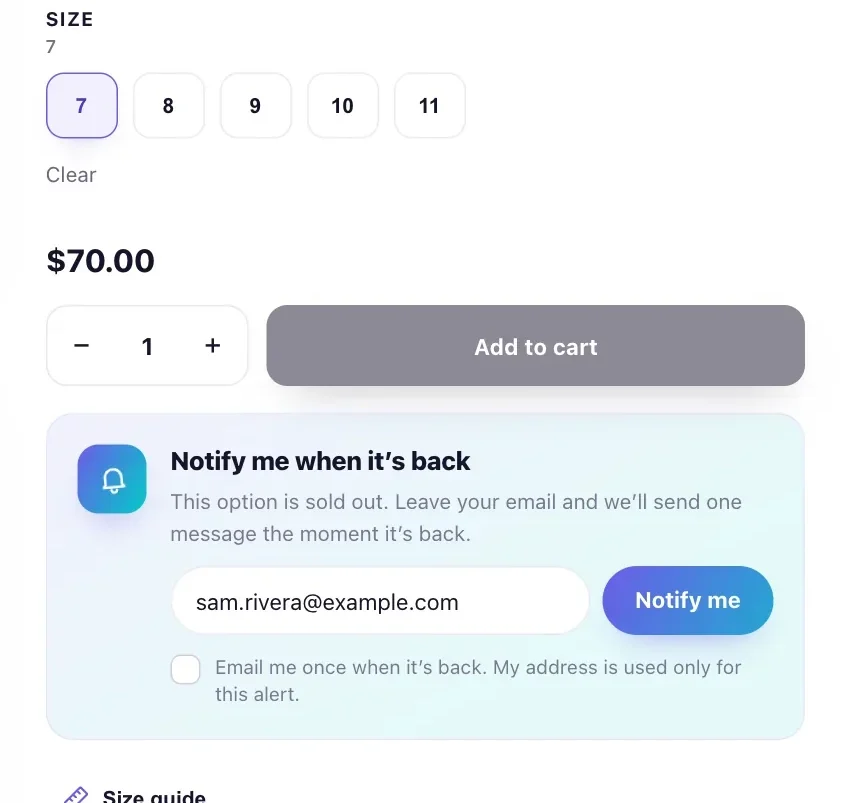
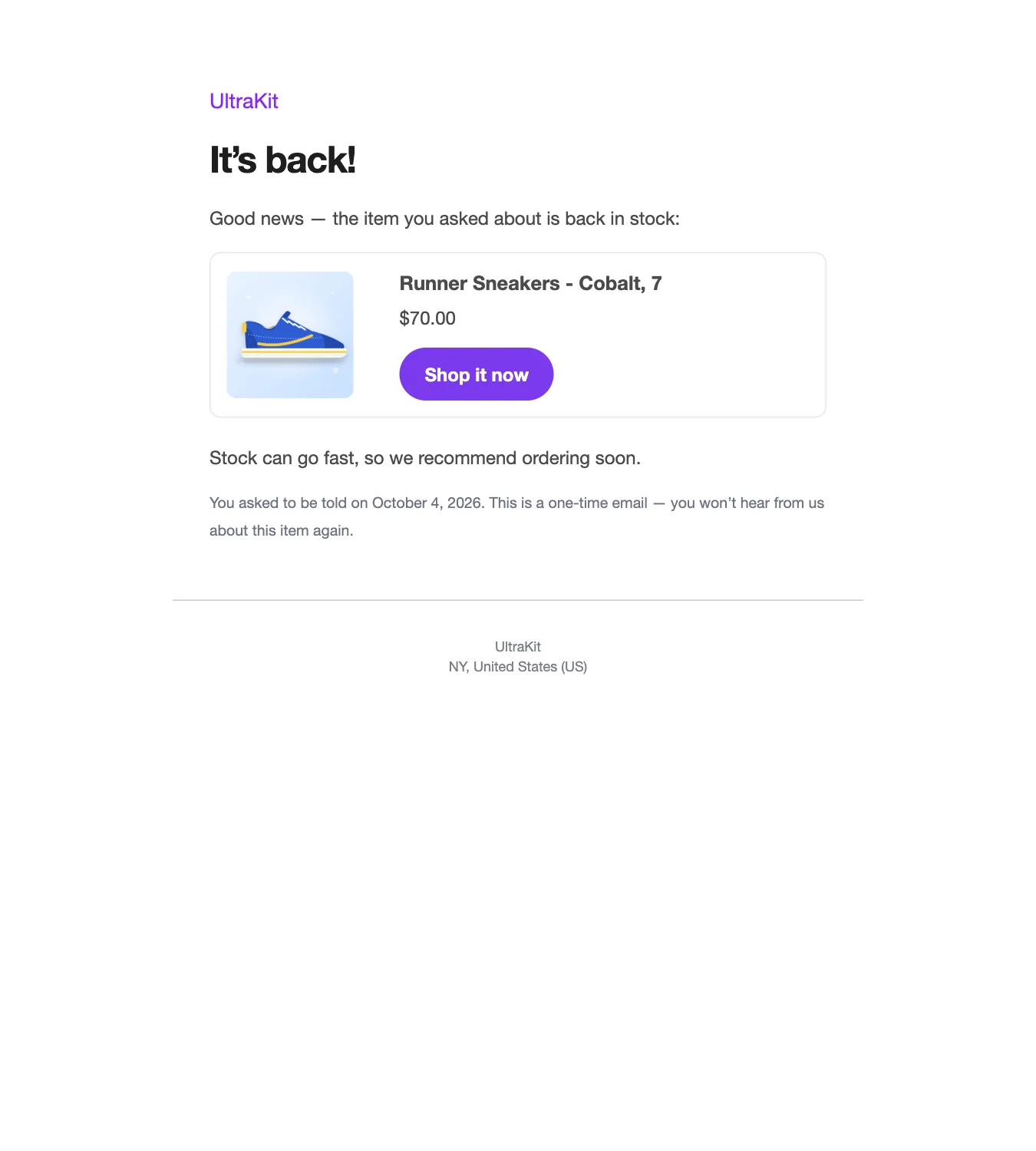
Scenario: Runner Sneakers in Cobalt, US 7 sold out, and so did the Retro Camera. Instead of a dead end, shoppers leave their email (with a clear consent checkbox). The moment stock comes back, each one gets a single WooCommerce-styled email.

  • ✓Works for simple products and single sold-out options of variable products.
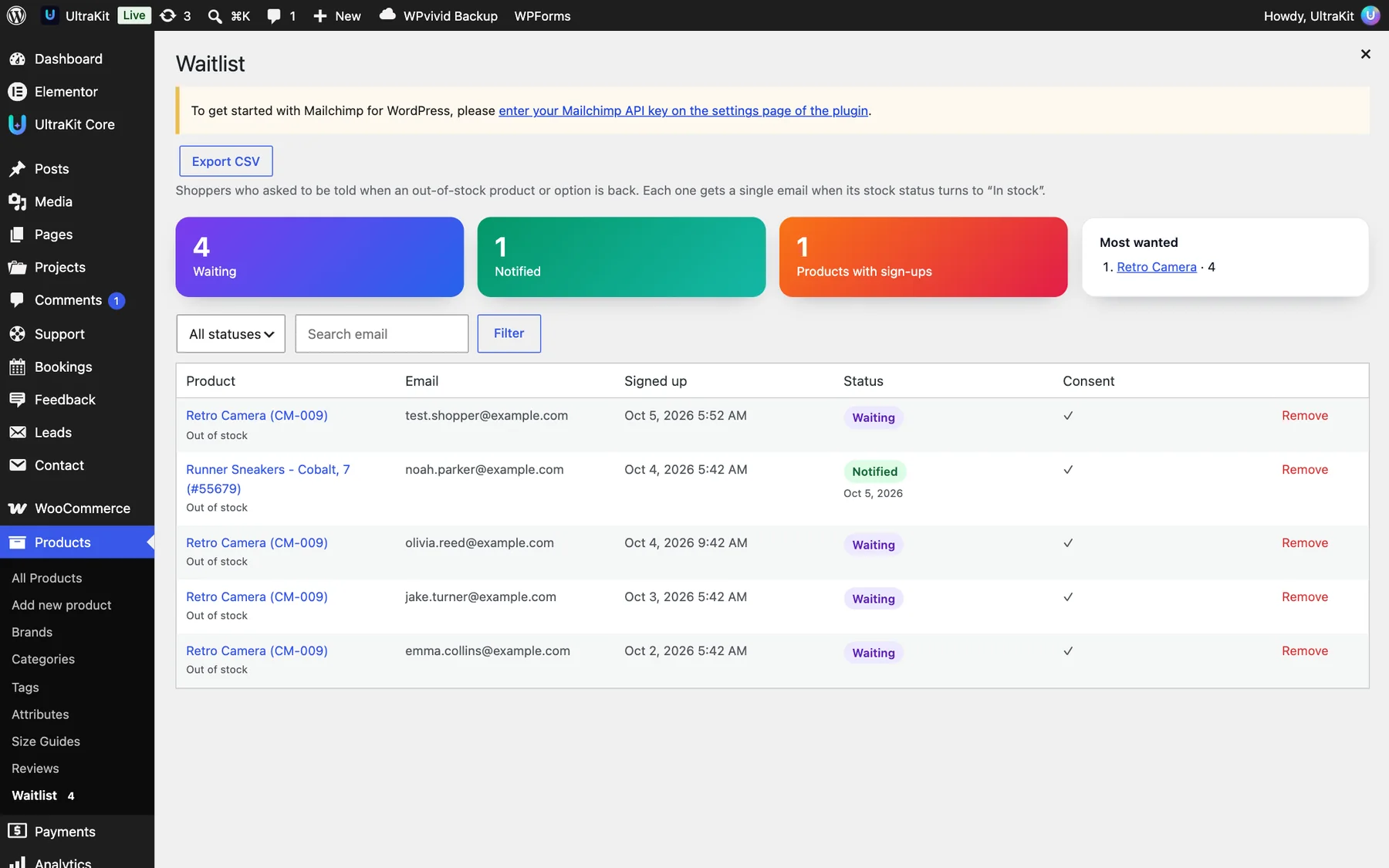
  • ✓Products → Waitlist: every sign-up with date, status and a CSV export. A counter sits on each product’s edit screen.
  • ✓The email is a real WooCommerce email — edit its subject and heading in WooCommerce → Settings → Emails.
Back-in-stock form on a sold-out size
Back in stock email
Waitlist admin list
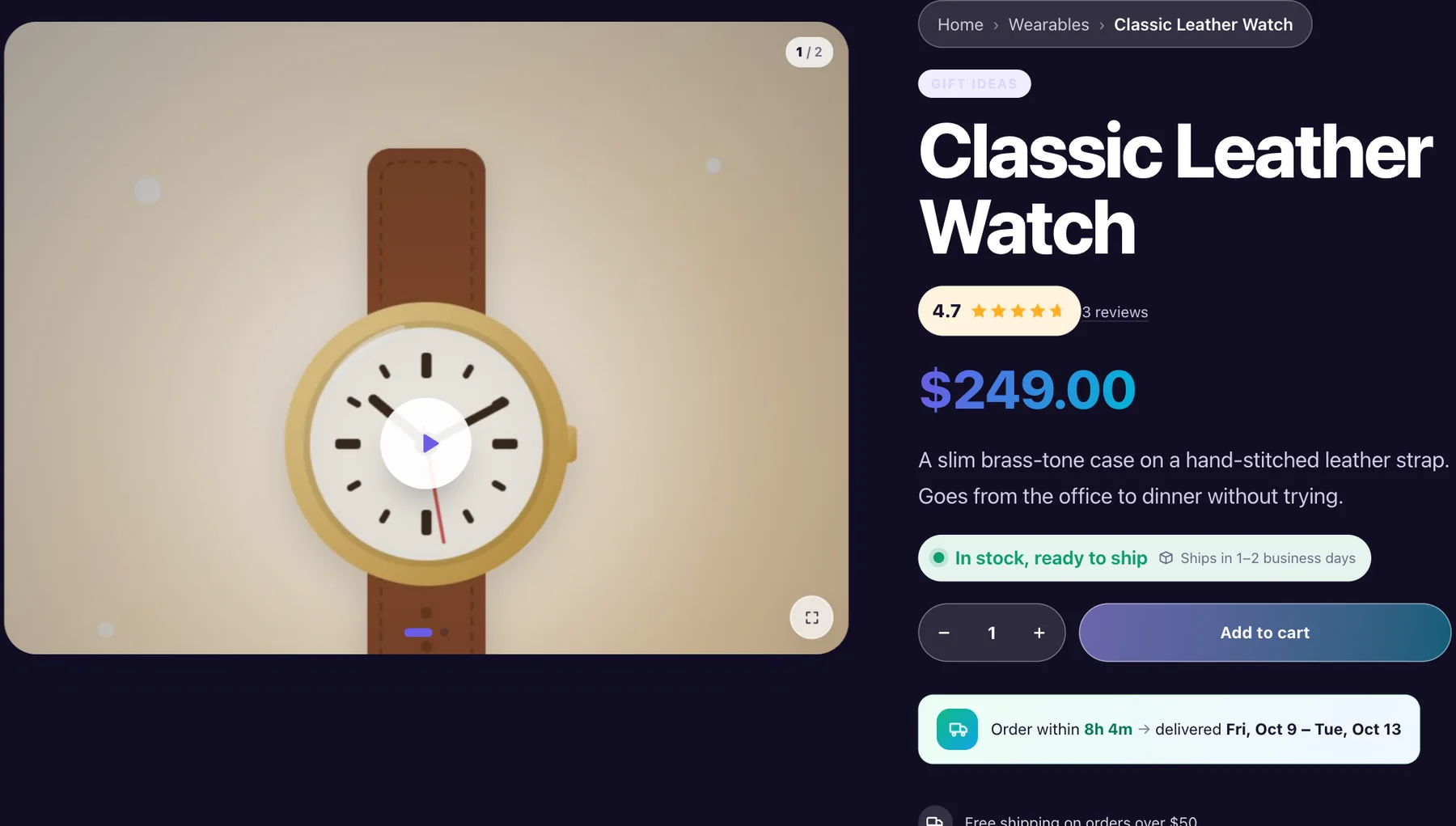
Product video slide in the gallery
3 · PRODUCT VIDEO

Scenario: a 10-second film of the Classic Leather Watch is the first slide of its gallery, with a soft play button. It plays right in the gallery (or in a lightbox — your choice) and pauses when shoppers swipe to a photo.

  • ✓Paste a YouTube or Vimeo link, or pick an MP4 from the Media Library.
  • ✓Choose first or last position. Nothing loads from YouTube until someone presses play.
  • ✓Uses WooCommerce’s own gallery, so it also works in theme, shop-kit and Product Builder layouts.
4 · CATALOG MODE & QUOTES

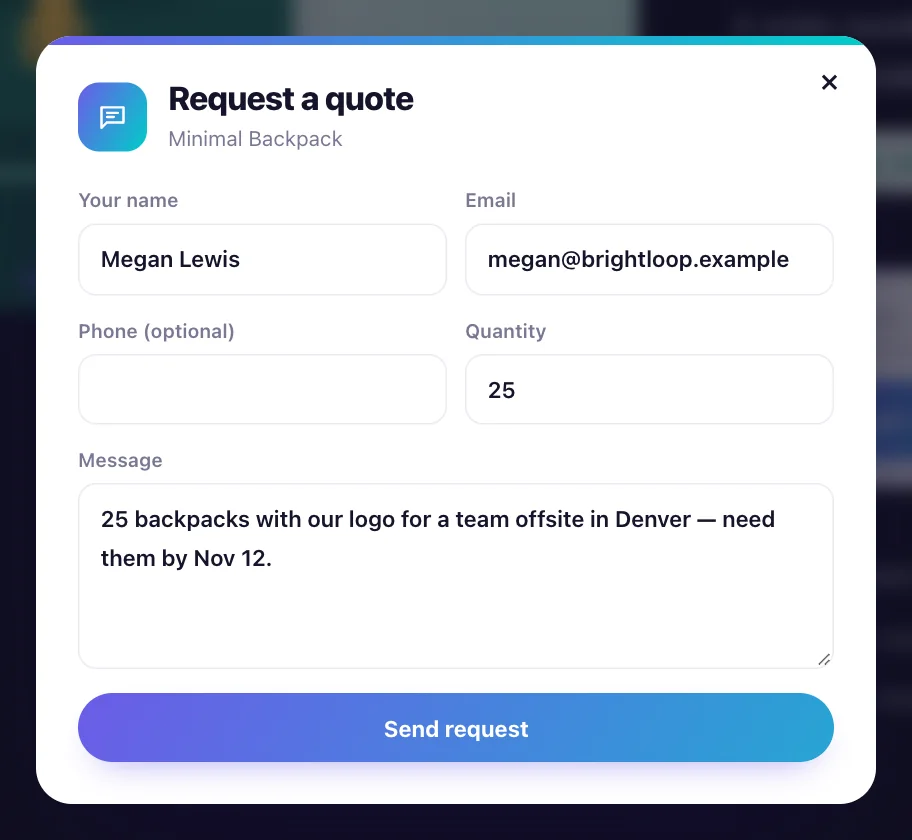
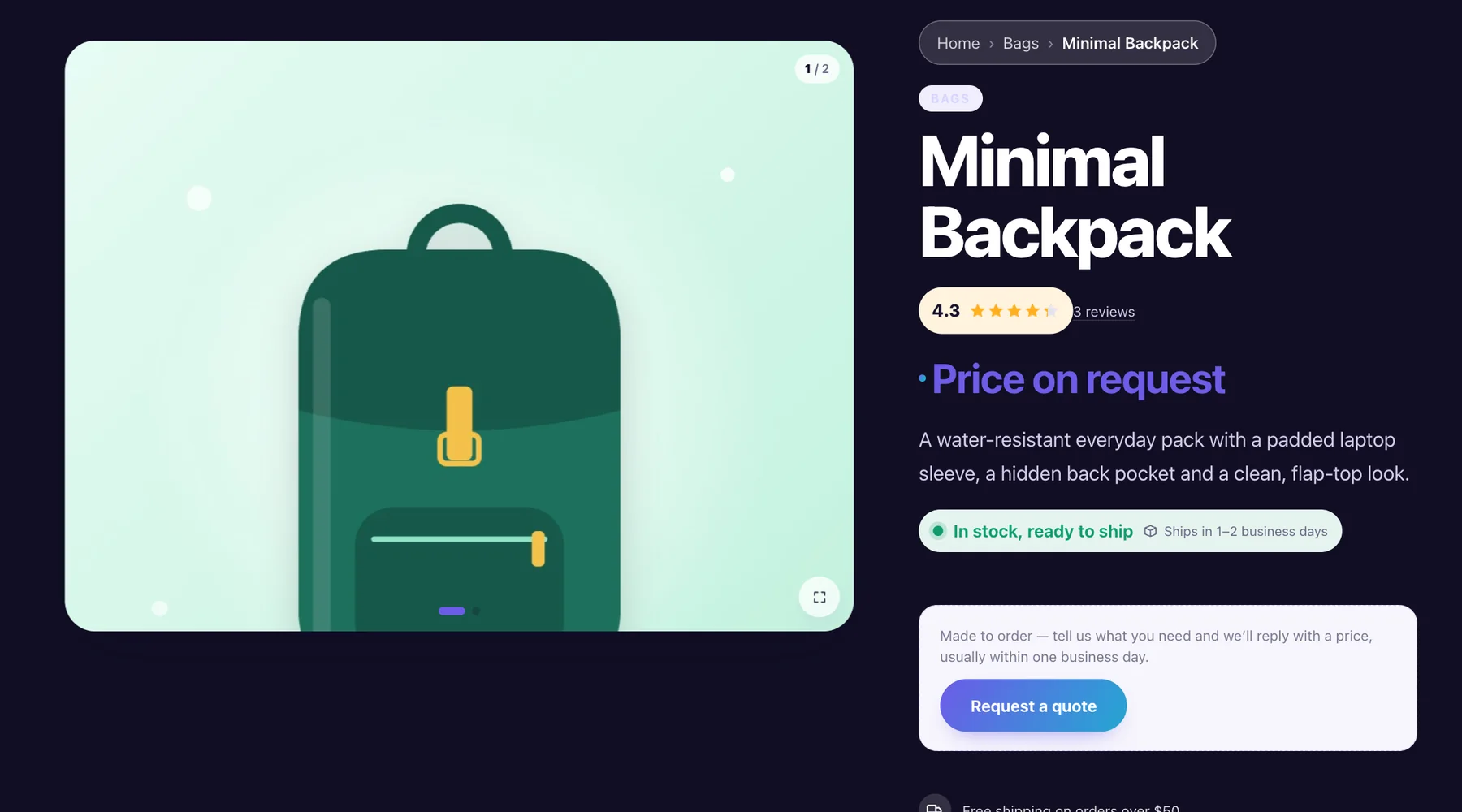
Scenario: this store only takes custom orders for bags. The Bags category is switched to catalog mode, so the Minimal Backpack shows “Price on request” and a “Request a quote” button — every other product still sells normally.

  • ✓Turn it on for everyone, for guests only (wholesale stores), or just for the categories you mark.
  • ✓Quote requests are saved under Leads and emailed to you, with name, email, quantity and message.
  • ✓Store-wide catalog mode can also hide the cart, checkout and header cart.
Request a quote form
Catalog mode product with Price on request
5 · ESTIMATED DELIVERY

Scenario: orders placed before 2:00 PM Eastern ship the next business day and take 3–5 days to arrive. The line below is live: it counts down to today’s cut-off, skips weekends and holidays, and moves to the next window by itself.

Order within 6h 55m delivered Thu, Oct 22 – Mon, Oct 26

Daily cut-off

Pick the hour; the countdown follows your site time zone.

Real dates

Processing + fastest / slowest shipping days, US date format.

Weekends & holidays

Skipped automatically — add Thanksgiving or Christmas once.

Per category & product

Bulky “Home” items here take 4–7 days; any product can override.

The same line appears in the cart and at checkout, based on the slowest item in the order.

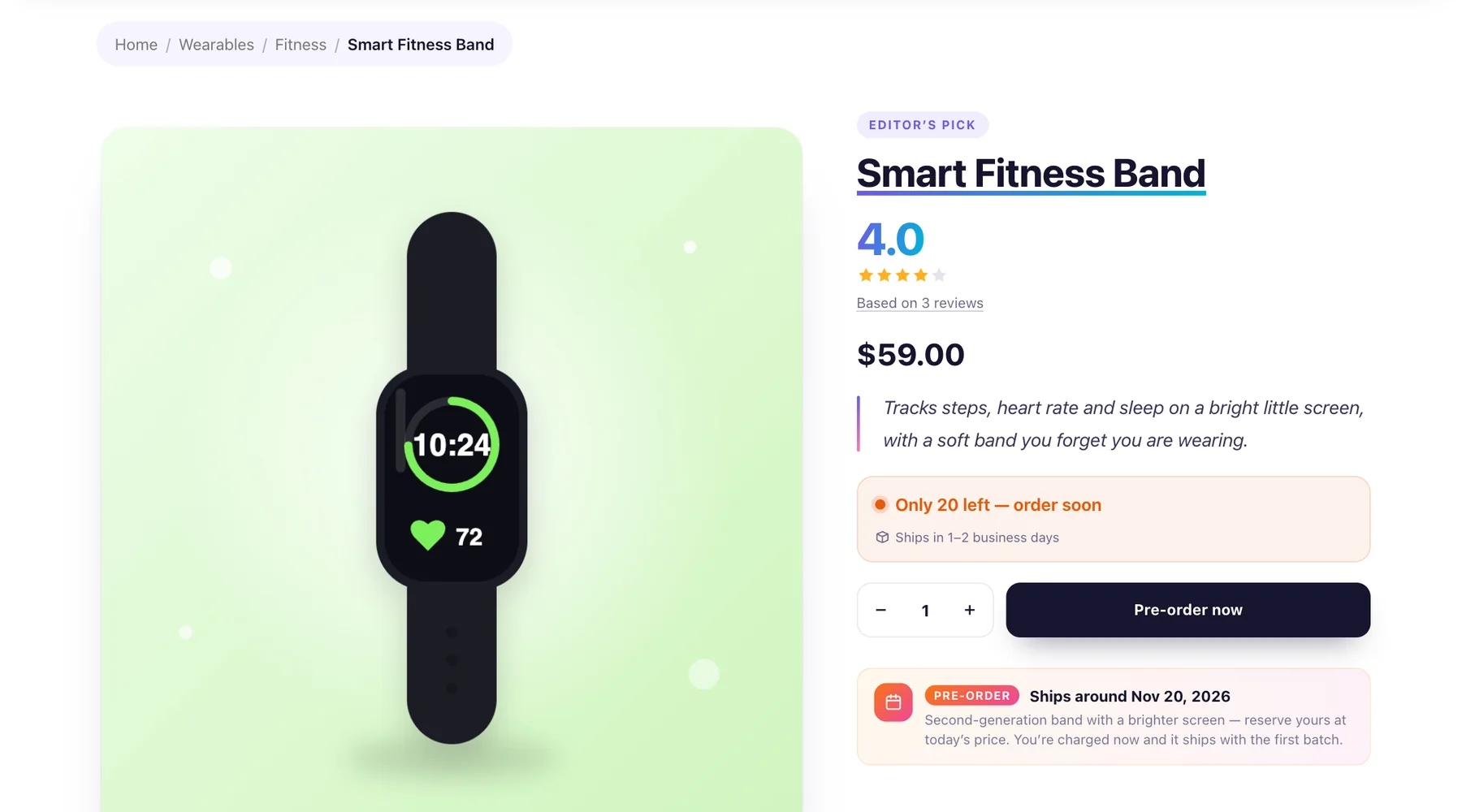
Pre-order product with ship date
6 · PRE-ORDERS

Scenario: the second-generation Smart Fitness Band arrives in November. It is on pre-order: the button says “Pre-order now”, the page shows “Ships around Nov 20, 2026”, and the date travels with the order.

  • ✓The ship date is saved on the order line, so it shows in the cart, checkout, order emails and admin.
  • ✓Shop cards get a small “Pre-order” badge.
  • ✓After the date passes, the product goes back to a normal “Add to cart” by itself.
SET UP IN MINUTES

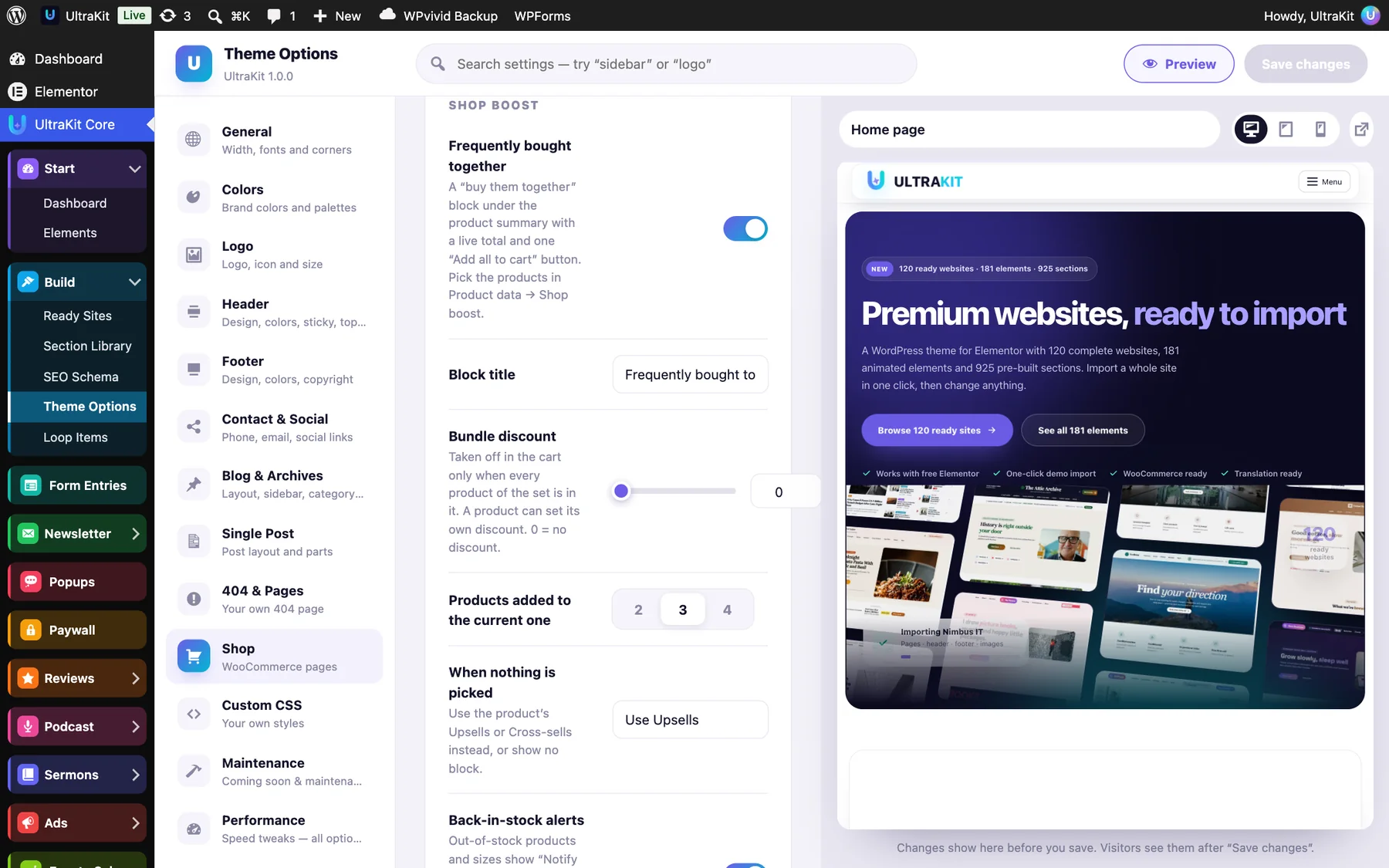
Theme Options → Shop → Shop boost turns each feature on or off and holds its defaults. Product-level choices live in one “Shop boost” tab on the product edit screen.

Shop boost settings in Theme Options
Shop boost tab on the product edit screen